
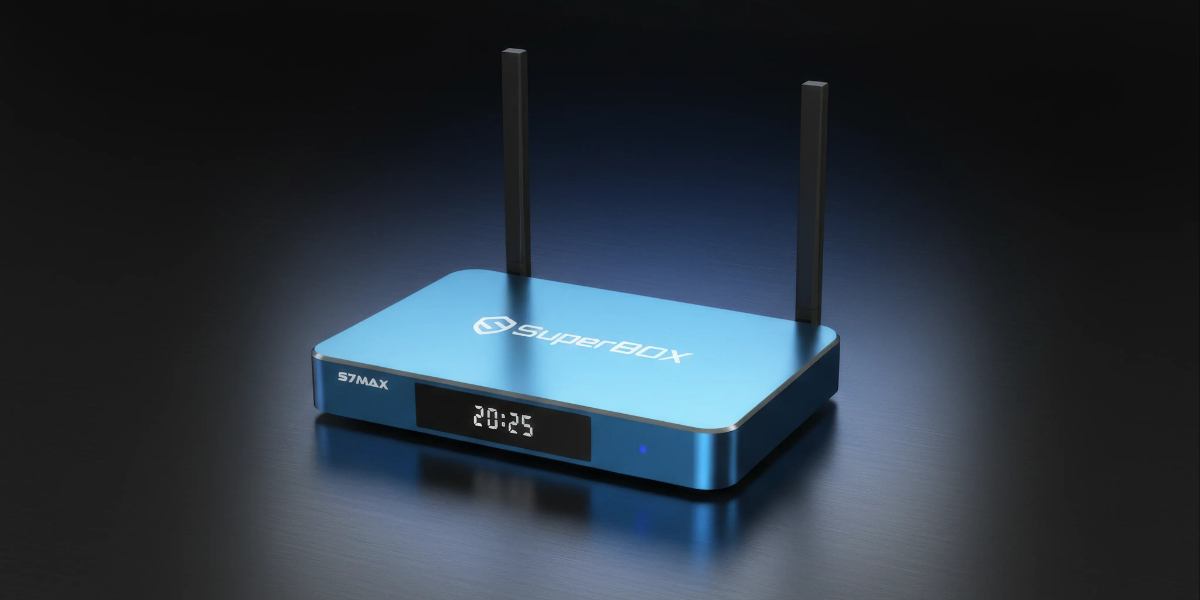
When you first receive the Superbox S7 Max, it appears to be just another Android streaming device with an attractive blue finish and standard connectivity options. However, what sets this box apart is its premium price point and the promise of replacing all your television and video subscription services. The device itself arrives as a basic Android box with minimal pre-installed content, requiring you to follow specific instructions to access a special app store that unlocks the full range of available material.
Once you’ve installed the required applications, you gain access to an impressively organised library of content spanning various television channels, streaming services, and video-on-demand options. The system uses your device’s unique identifier for authorisation rather than requiring personal login details, and it even displays user ratings to help you select what to watch. Whilst the hardware itself is simply an Android box, the true value lies in the applications you choose to install and use, which raises important questions about copyright and the legal implications of accessing such content.
Discount code: markjdraper
Use during checkout on: https://mysuperboxtv.com
If you need a VPN Try Nord
Key Takeaways
- The Superbox S7 Max is an Android streaming device that requires additional app installation to access its advertised content library
- You can browse extensive categorised content from multiple streaming services and channels without entering personal login credentials
- The legality centres on your choice to install and use specific applications rather than the device itself
What Is the Superbox S7 Max?
Overview and Function
The Superbox S7 Max is an Android streaming device that costs hundreds of pounds to purchase. You receive what appears to be a standard Android box, but the high price point relates to its intended use as a replacement for television channel subscriptions and video-on-demand services.
When you first power up the device, you’ll find a clean interface with only basic applications installed. The box itself contains no pre-loaded content or streaming capabilities. To access the advertised content library, you need to install a special app store that isn’t included by default.
You’ll receive instructions to download and install this app store manually. Once installed, the store provides access to various applications, including a primary blue-themed app that unlocks the content catalogue. This catalogue includes:
- Sky channels and Sky movies
- Sports channels from multiple providers
- Netflix content
- Disney Plus content
- Numerous other streaming services
The interface organises content by service provider, making it simple to browse what’s available from specific platforms. You’ll also see user ratings displayed alongside titles, showing scores like 5.8 or 7.1 to help you decide what to watch.
Authentication works through a unique MAC address visible on screen rather than requiring you to enter personal details or email addresses. This identifier links your specific device to the service.
Design and Build Quality
The device features a blue metallic finish that gives it a premium appearance. You’ll find the power input and HDMI output port on the rear panel, alongside connectivity options for both Wi-Fi and Ethernet cable connections.
Additional ports are located on the side panel:
- Memory card slot
- USB ports for peripherals like keyboards or mice
- USB stick connection
A small display on the front panel shows the time. The box operates via USB cable power and comes with a remote control that proves responsive during use. You can activate a mouse mode on the remote, which places a cursor on screen for easier navigation in certain situations.
Key Features and Specifications
Connection Methods
You can connect the device to your network in two ways. The unit supports both Wi-Fi and Ethernet cable connections. This gives you flexibility in how you integrate it into your home setup.
For testing purposes, I connected mine via Wi-Fi to a guest network. This approach kept it separate from my main network infrastructure.
Available Inputs and Outputs
The rear panel houses several key connections. You’ll find the power input alongside an HDMI output for connecting to your display.
Additional ports are located on the side of the unit:
- Memory card slot
- USB port (suitable for peripherals such as keyboards or mice)
- USB connection (for storage devices)
The front panel includes a small display screen. This shows the current time when the device is in use.
Power delivery can be handled through a USB cable connection.
Operating the Device
The included remote control provides responsive operation. I found it worked without any noticeable lag or delay.
A particularly useful feature is the mouse mode. When activated, this places a cursor on screen for easier navigation in certain situations.
The remote handles all standard navigation tasks effectively. You can use it to move through menus and select content as needed.
Getting Started and Setup
Initial Setup Process
When you receive the device, you’ll find it resembles a standard Android box with a blue finish. On the rear panel, you’ll locate the power input and HDMI output port for connecting to your display.
You can use either the included remote control or activate mouse mode, which places a cursor on screen for easier navigation. The remote responds well and provides straightforward control of the interface.
Upon first powering on the box, you’ll see a basic interface with minimal pre-installed applications. The device itself doesn’t come with content readily accessible out of the box.
To access the full range of content, you’ll need to install a specific app store. You’ll receive instructions for downloading and installing this app store application onto the device.
Once you’ve installed the app store, you can browse and select additional applications. One particular application unlocks access to the extensive content library, including:
- Multiple television channels
- Sports programming
- Video on demand services
- Content organised by streaming platform
The system uses your device’s MAC address for authorisation. You won’t need to create accounts or enter personal details to access the applications.
The interface displays user ratings for films and television programmes, showing scores directly alongside content listings. This feature allows you to quickly assess content quality without needing to search externally.
Network Configuration
You have two options for connecting the device to your network:
- Wi-Fi connection: Wireless connectivity for flexible placement
- Ethernet cable: Wired connection via the port on the rear panel
For security purposes, you may wish to connect the device to a guest network rather than your primary home network. This approach isolates the box from your main network devices.
The side panel includes additional connectivity options such as a memory card slot and USB ports. These allow you to connect external storage or peripherals like keyboards or mice if needed.
User Interface and App Store Access
Pre-installed Applications and Visual Design
When you first power on the device, you’ll encounter a polished interface that appears well-designed. However, the box arrives with minimal pre-installed applications.
The included apps are basic utilities that don’t provide access to the content libraries often associated with this device. You won’t find any indication of how to access streaming services or live channels out of the box.
The remote control that comes with the device offers responsive performance. It includes a mouse mode feature that places a cursor on screen, which proves useful for navigating certain applications.
Installing the Special App Store
The device functions as a standard Android box until you install additional software. You’ll need to follow specific instructions to download and install a particular app store that isn’t pre-loaded.
Once you’ve installed this app store, you’ll gain access to various applications. One application, identified by its blue icon, serves as the gateway to the content libraries.
The authentication system uses the device’s MAC address rather than requiring you to create an account or enter personal details. This identifier appears on screen and authorises your access to the applications.
Installation process:
- Download the app store using provided instructions
- Install the app store onto the device
- Open the app store to view available applications
- Install the blue application to unlock content access
You won’t need to input an email address or other personal information during this process. The system automatically recognises your device through its unique hardware identifier.
Content Availability and Categorisation
Broadcast Channels
When you access the dedicated application, you’ll find an extensive selection of broadcast channels available through the interface. The system provides access to premium channels including Sky and Sky Movies, alongside various sports networks.
The channels are organised in a straightforward manner, making it simple to locate specific content. You don’t need to enter login credentials or personal details to access these channels. Instead, the device uses a unique MAC address to authenticate your access to the applications.
On-Demand Library Services
The on-demand section offers a comprehensive catalogue of content from multiple streaming platforms. You can browse content from services such as Netflix and Disney Plus, all organised within dedicated sections.
Each platform has its own category, allowing you to filter content by its original service. The categorisation is detailed and makes navigation through the vast library manageable. The interface displays available titles from each service in an organised format.
Ratings System Integration
The interface incorporates user ratings directly into the content displays. When you browse through films or television programmes, you’ll immediately see numerical ratings displayed alongside each title.
These scores appear as decimal ratings, such as 5.8 or 7.1, pulled from an external ratings database. This feature eliminates the need to check separate websites or applications to determine content quality before viewing. The ratings are visible throughout the browsing experience, providing immediate feedback on each title’s reception.
Security and Privacy Considerations
Access Control Methods
The device operates using a MAC address-based verification system rather than traditional login credentials. This unique hardware identifier appears on screen during use and serves as your authorisation token for accessing the application ecosystem.
You won’t need to create user accounts or provide authentication details to access the content platform. The system identifies your device through its MAC address, which automatically grants permission to use the installed applications.
This approach differs from conventional streaming services that require username and password combinations. Your device’s hardware identifier functions as the sole method of verification.
Personal Data Handling
The system requires minimal personal information during setup and operation. You only need to provide an email address as part of the initial configuration process.
Data Requirements:
- Email address
- MAC address (automatically collected)
No additional personal details are requested or stored by the applications. This limited data collection approach means you avoid submitting payment information, postal addresses, or other sensitive credentials typically required by subscription services.
The device connects to your network through Wi-Fi or Ethernet. You can enhance privacy by connecting the box to a guest network rather than your primary home network, isolating it from other devices.
A VPN can be installed on the device to add an additional layer of privacy protection during use.
Legal Implications and Ethical Concerns
Character of Copyright Violation
When you receive the device initially, it functions as a standard Android box with no content pre-installed. The potential for copyright violation emerges only after you actively download and install specific applications from a third-party app store.
These applications grant you access to premium television channels, films, and streaming service catalogues without requiring legitimate subscriptions. Once you launch these programmes and begin viewing content, you enter territory where copyright infringement occurs.
The content available includes:
- Premium satellite television channels
- Sports broadcasting services
- Major streaming platform libraries (Netflix, Disney Plus, and others)
- Video-on-demand services
You don’t need to create accounts or provide personal credentials. The device uses its unique MAC address for authorisation, which means your viewing activity is tied solely to that hardware identifier rather than any personal information.
Manufacturer’s Legal Standing
The company maintains that their product itself doesn’t violate any laws. When you purchase the hardware, it arrives as an ordinary Android device with basic applications only.
The manufacturer’s position relies on separation between the physical device and the content-accessing software. They argue the box is simply hardware, whilst the app store installation happens as a separate step.
You receive instructions to download an app store after purchase. From that store, you can then choose to install the applications that provide access to copyrighted material. The manufacturer emphasises this distinction: they produce the hardware, whilst your decision to install and use specific applications remains your responsibility.
The company specifically requested that identifiable screen elements be obscured in any demonstrations. They acknowledged the sensitivity around displaying copyrighted content but maintained their hardware doesn’t inherently facilitate infringement until you take additional steps to install unauthorised software.
This approach differs from modified devices sold with piracy software pre-installed, which have faced legal action. The manufacturer attempts to create distance between their product and the ultimate use by requiring you to actively seek out and install the content-accessing applications yourself.
Wrapping Up My Assessment
The S7 Max arrives as a standard Android device with an attractive blue exterior and typical connectivity options. You receive a box that contains nothing extraordinary upon initial setup—just basic applications and a clean interface.
To access the extensive content library, you need to manually download and install a specific app store that isn’t pre-loaded. Once you install this store, you can then download additional applications, including the primary blue app that unlocks the full range of channels and on-demand services.
What you’ll find in the content library:
- Traditional broadcast channels
- Premium film channels
- Sports broadcasting services
- Multiple streaming platform catalogues (Netflix, Disney Plus, and others)
- Well-organised categories for easy navigation
- User rating scores displayed alongside titles
The device uses your unique MAC address for authorisation rather than requiring email registration or personal credentials. This means you won’t input any identifying information during setup or usage.
The remote control performs reliably and includes a mouse mode function that displays a cursor on screen when needed. You can connect the device through either Wi-Fi or Ethernet, depending on your network preferences.
Key technical specifications:
| Feature | Details |
|---|---|
| Network connectivity | Wi-Fi and Ethernet |
| Ports | HDMI out, USB, memory card slot |
| Display | Front-facing time display |
| Remote | Standard remote with mouse mode |
The legal position centres on what you choose to do after purchasing the hardware. The physical device itself functions as a regular Android box. Installing the app store and subsequently downloading streaming applications remains your decision. Watching copyrighted content through these apps enters the realm of potential copyright infringement.
You may want to consider using a VPN if you proceed with this setup. The device supports VPN installation like any standard Android box.
