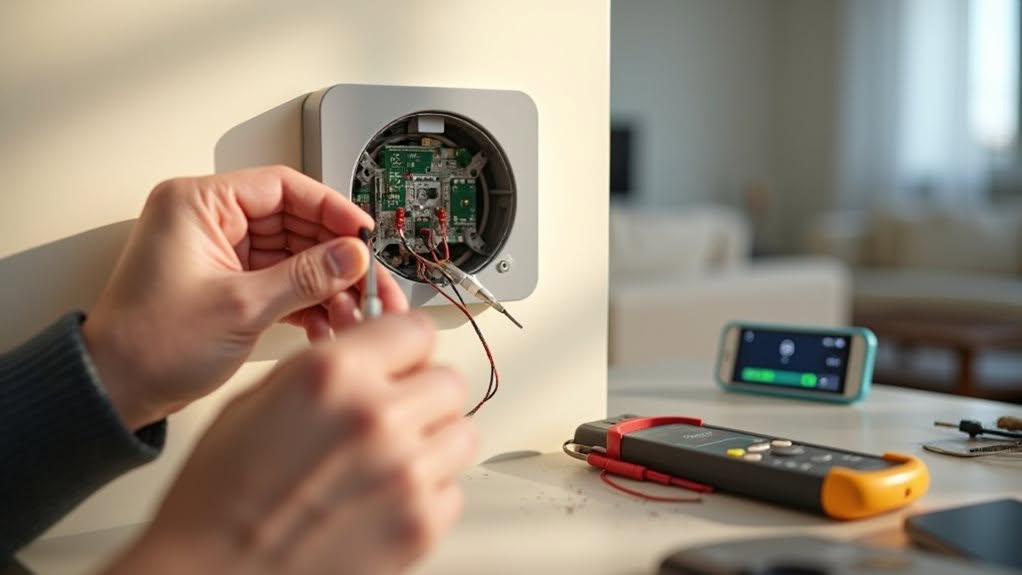
When troubleshooting smart climate devices, start with the basics: check Wi-Fi connectivity, restart your thermostat and router, and verify your device has proper power. Replace batteries if needed or inspect wiring connections. Verify your mobile app is updated and properly synced with your thermostat on the same network. For persistent issues like error codes, strange noises, or safety concerns, don’t hesitate to contact professional help. The following guide offers thorough solutions for various smart climate system challenges.
Resolving Wi-Fi Connectivity Problems
Why do smart climate devices so often lose their connection to your home network? The culprits are typically physical obstructions, router distance, or network congestion that weaken signal strength.
Position your router closer to the climate device, removing walls or metal objects between them. For larger homes, consider Wi-Fi extenders or mesh wifi systems to boost coverage and eliminate dead zones throughout your entire home.
Restart both your router and smart device when connectivity issues occur. This simple power cycling clears cached connection problems and reestablishes network links.
Update your thermostat’s firmware and router software regularly. Outdated firmware often causes compatibility issues with current network protocols.
Switch to the 2.4 GHz frequency band if your device doesn’t support 5 GHz, as it provides better range and penetration through obstacles.
Diagnosing and Fixing Power Issues
When your smart thermostat fails to power on, the issue often stems from either depleted batteries or faulty wiring connections.
For battery-powered units, you’ll need to remove the faceplate, replace the old batteries with fresh ones of the correct type, and verify they’re properly seated in their compartment.
If your device is hardwired, you should turn off power at the circuit breaker, carefully inspect all wire connections for looseness or damage, and secure any compromised connections using a screwdriver to tighten terminal screws. You can use a multimeter to measure the voltage across wires and confirm whether you’re getting the expected power supply to the device.
Battery Replacement Guide
Keeping your smart climate device powered properly serves as the foundation for reliable operation and accurate temperature control. When your thermostat displays a low battery warning or shows a blank screen, it’s time for new batteries.
Most smart thermostats use AA or AAA batteries that typically last 6-12 months. To replace them, first turn off your device, then access the battery compartment according to your specific model.
For Honeywell programmable models, pull the lower right corner to access AAA batteries. Non-programmable Honeywell models require pulling the outer plastic ring to reach AA batteries. Some older Honeywell models require pushing down on the slits at top to detach the battery housing completely.
Nest users should pull the display from the wall-mounted base.
Always check for corrosion on battery contacts and verify correct polarity when inserting new batteries. After installation, watch for the device to restart automatically confirming proper battery placement. Establish a regular replacement schedule to prevent unexpected power failures.
Wiring Troubleshooting Steps
Power issues with smart climate devices often stem from wiring problems that can be diagnosed with a systematic approach.
Begin by confirming your furnace is switched on and checking your electrical panel for tripped breakers or blown fuses.
Examine the thermostat wiring at both ends, looking for loose connections, corrosion, or damaged insulation.
Verify all wires match the manufacturer’s terminal diagram precisely.
Use a multimeter to test for 24VAC between the R and C terminals.
If voltage is present but the display remains blank, your thermostat may be defective.
For devices without a C-wire, consider installing an adapter for consistent power.
Check for shorts by confirming no bare wires are touching each other.
If problems persist after resetting the system, the issue may require professional diagnosis to prevent equipment damage.
Syncing Your Mobile App With Your Smart Thermostat
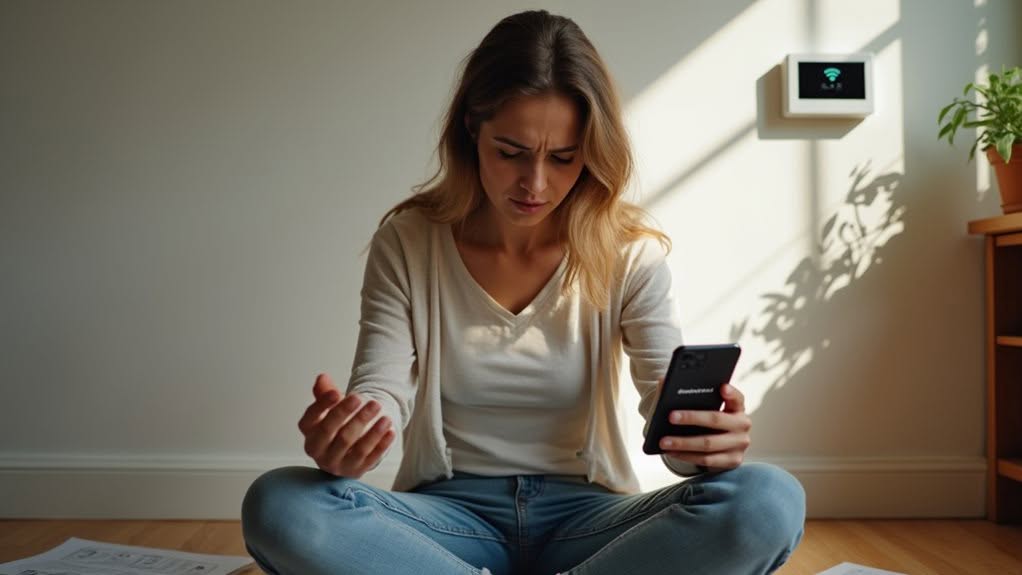
When your smart thermostat fails to communicate with your mobile app, check that both devices are connected to the same Wi-Fi network and that your password has been entered correctly.
Keeping both your thermostat’s firmware and mobile app updated guarantees compatibility and access to the latest features, which can prevent many common connection problems.
If persistent issues occur, you might need to reset the connection by removing the device from your app and repeating the initial pairing process, following the manufacturer’s specific instructions for your thermostat model. For security purposes, you may need to enter a security PIN displayed on your thermostat screen during the reconnection process. Remember that your thermostat must be in linking mode, which requires pressing and holding the power button, before attempting to reconnect it to your app.
App-Device Connection Troubleshooting
Syncing your smart thermostat with its companion mobile app can become frustrating when connection issues arise. Most users encounter common errors like “Device Not Found” or PIN code mismatches during initial setup.
When troubleshooting connection problems, first restart your app and refresh the device. If the issue persists, check that all app permissions are set to “always on” in your phone settings. Keep your smart device within 3 to 5 feet of the thermostat during the entire setup process.
Network configuration plays an essential role in maintaining stable connections. Confirm your thermostat connects to a 2.4 GHz Wi-Fi band, as 5 GHz connections often cause failures. Verify your password is entered correctly, not autofilled.
For persistent issues, try disabling VPNs temporarily, moving your router away from other 2.4 GHz devices, or performing a cache clear by reinstalling the app.
Update Both Components
Keeping both your smart thermostat and its mobile app updated remains essential for maintaining seamless connectivity and accessing the latest features. Outdated software can lead to compatibility issues, which often cause syncing problems between devices.
Regular updates provide important security patches that protect your system from unauthorized access. They also deliver new functionalities and improve energy efficiency, potentially reducing your costs by up to 30%.
When updating, verify your thermostat has stable power and Wi-Fi connectivity throughout the process. Update your mobile app through your device’s app store first, then follow the manufacturer’s instructions to update your thermostat’s firmware. Many homeowners benefit from using the Resideo Pro app for simplified configuration of their T6 Pro Smart thermostats during updates.
If you encounter issues during updates, check your network connection or contact customer support for guidance. Proper maintenance guarantees peak performance and integration with other smart home systems.
Reset Sync Problems
Despite regular updates, sync problems between your smart thermostat and mobile app can still occur unexpectedly.
These connectivity issues often have simple solutions you can implement before contacting technical support.
- Check your network configuration by confirming your thermostat is within Wi-Fi range and connected to the correct 2.4 GHz band if it doesn’t support 5 GHz.
- Restart both devices by powering off your thermostat and closing the app completely, then restarting them.
- Verify app permissions and disable any VPNs or security programs that might interfere with proper communication.
- Perform a factory reset on the thermostat if persistent problems continue after trying other solutions.
If these steps don’t resolve your sync issues, check for error messages on both devices and consider reaching out to manufacturer support.
Ensuring System Compatibility and Integration
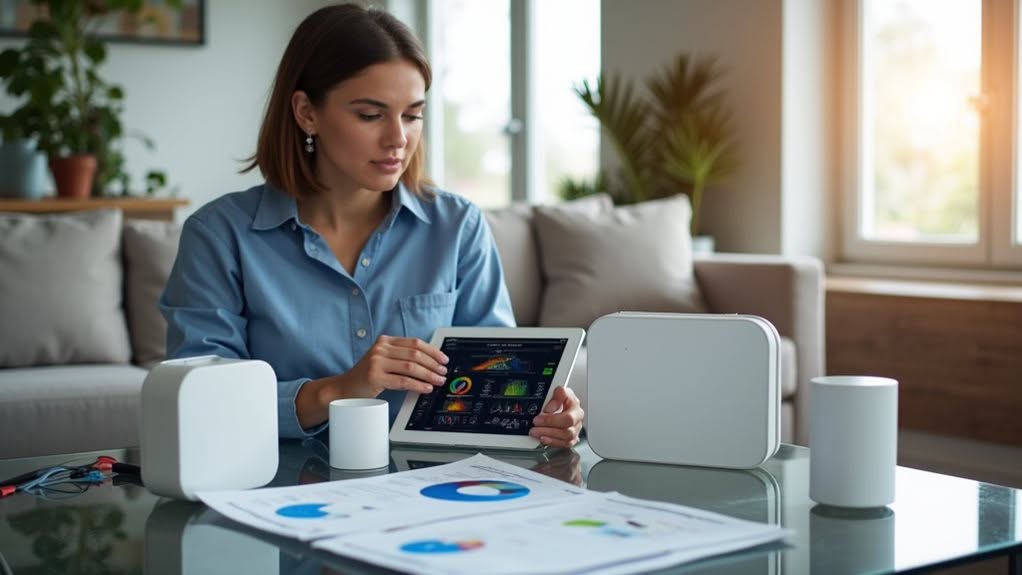
Before you install any smart climate device in your home, understanding system compatibility is essential for successful integration. Different HVAC systems require specific smart thermostats and adapters, particularly older models or multi-stage setups.
Verify your wiring configuration first. Most smart thermostats need a C-wire for consistent power, which many older homes lack. Without proper wiring, your device may experience connectivity issues or fail completely.
Check your home’s communication protocols as well. Your smart climate devices must operate on compatible networks (Wi-Fi, Zigbee, or Z-Wave) with strong signal coverage throughout your home.
For complex systems like radiant heating or ductless mini-splits, consider a professional assessment. An expert can identify compatibility requirements, recommend appropriate devices, and guarantee proper integration with your existing HVAC infrastructure.
Overcoming User Interface Challenges
Smart climate devices often present interface challenges that can frustrate even tech-savvy homeowners. Understanding how to maneuver through these interfaces efficiently can dramatically improve your experience with these systems.
When troubleshooting interface issues, consider these practical approaches:
- Don’t rely exclusively on mobile apps—research shows users still prefer having basic controls on the physical device.
- Reduce interface complexity by organizing functions logically and using clear, non-technical language.
- Enable push notifications for critical alerts like high-price periods without requiring constant app access.
- Utilize interactive guidance features like tooltips and contextual help to increase your confidence in device operation.
Remember that balancing simplicity with functionality is key. Most users prefer multi-modal control options, including physical buttons (18%) and voice commands (17%), alongside smartphone apps (45%). The positive reception of smart technology is evident as studies show 77% of consumers believe these systems enhance quality of life.
When to Seek Professional Assistance
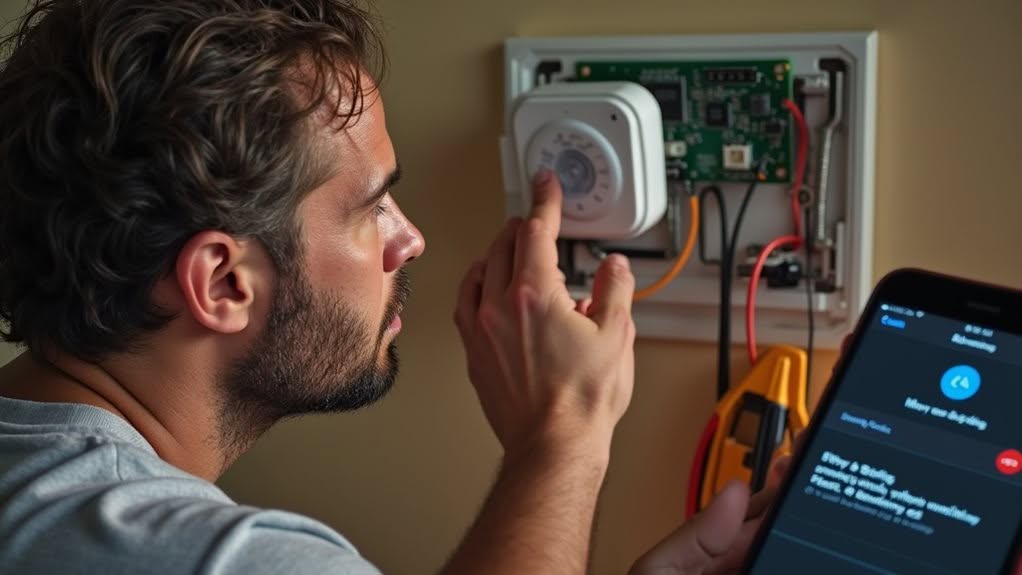
Although troubleshooting smart climate devices yourself can solve many issues, recognizing when professional help is necessary saves time and prevents potential damage.
Watch for persistent error codes or system components making abnormal noises that continue after basic troubleshooting. If your energy consumption suddenly spikes or temperature sensors consistently report anomalies, these indicate deeper issues.
Safety concerns require immediate professional attention. Don’t attempt repairs when you notice electrical issues like sparks, burning smells, or tripping circuit breakers. Refrigerant leaks or carbon monoxide detector activations also demand expert intervention.
Consider professional help when repairs involve proprietary components or require specialized tools. Modern smart systems often need professional calibration or programming beyond DIY capabilities.
Finally, heed your system’s predictive maintenance alerts, especially if they escalate despite your routine maintenance efforts.
Frequently Asked Questions
How Do I Set up Vacation Mode on My Smart Thermostat?
Open your thermostat app, select Vacation mode, input your departure and return dates, set desired temperatures (about 78°F summer, 60-65°F winter), and save your settings. You can adjust these remotely anytime.
Can Smart Thermostats Detect Room Occupancy Automatically?
Yes, many smart thermostats detect room occupancy automatically using PIR sensors, ultrasonic sensors, or radar technology. They’ll adjust temperatures based on your presence and can use remote sensors for multi-room detection and improved energy efficiency.
Will a Smart Thermostat Work During Internet Outages?
Yes, your smart thermostat will continue working during internet outages. It’ll maintain basic heating and cooling using saved settings, and you can still make manual adjustments directly on the device. Only remote access features become unavailable.
How Much Energy Savings Can I Expect Realistically?
You’ll likely save 8-12% on heating and 10-15% on cooling with smart thermostats, totaling around $50 annually. Actual savings depend on your climate, current system efficiency, and how consistently you use smart features.
Can Multiple Household Members Control the Same Device?
Yes, most smart climate devices support multi-user access. You can share control with family members through the device’s app, allowing everyone to adjust temperature settings and schedules from their own smartphones wherever they are.
Final Thoughts
You’ve now gained crucial skills for troubleshooting your smart climate devices. Remember that most issues stem from connectivity, power, or compatibility problems that you can often resolve yourself. When your efforts don’t succeed, don’t hesitate to contact customer support. With regular maintenance and the troubleshooting techniques we’ve covered, you’ll maximize the efficiency and lifespan of your smart home climate system.