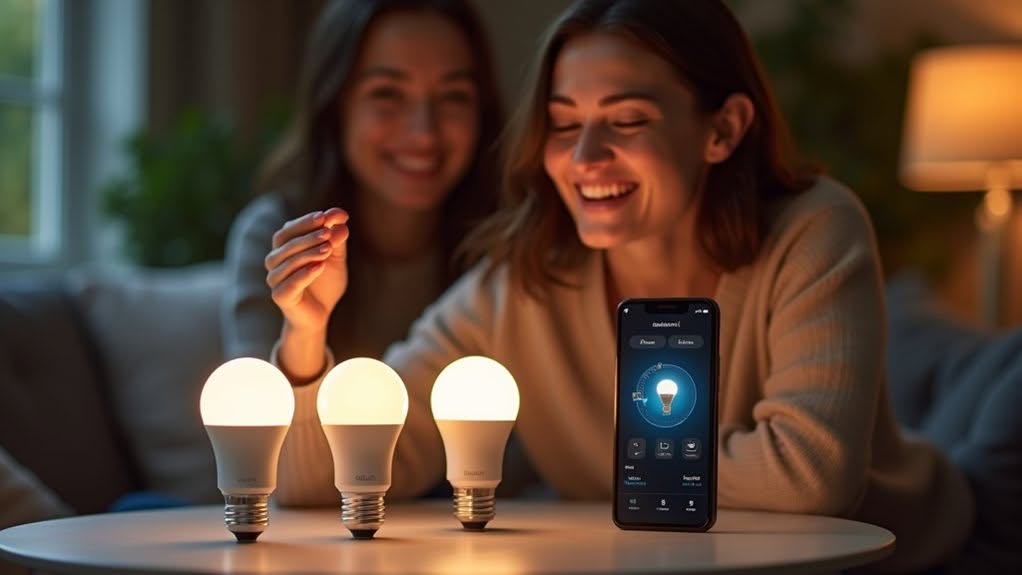
To set up lights with Alexa, follow these three steps: First, make sure your smart bulbs are Alexa-compatible and install them in your fixtures using proper safety precautions. Second, download the manufacturer’s app, create an account, and complete the initial bulb setup. Third, open your Alexa app, tap the “+” icon in Devices, select “Light,” and follow the prompts to discover and name your lights. Further customization options await in the Alexa app’s routines section.
Preparing Your Smart Bulbs for Connection
Before connecting your smart bulbs to Alexa, you’ll need to guarantee they’re properly prepared for a seamless integration. First, check the packaging or manufacturer’s website to confirm your bulbs are Alexa-compatible and support your desired features like dimming or color changes.
Ensure the bulb base matches your fixture type (E26, E12, GU10, etc.) and verify whether it requires a hub or connects directly with Alexa. Most smart bulbs require a 2.4 GHz Wi-Fi connection, not 5 GHz.
Installation is straightforward but requires safety precautions. Turn off power to the fixture, install the bulb securely without overtightening, and restore power. The bulb should initialize, possibly flashing or cycling colors briefly.
Download the manufacturer’s app and create an account if required for initial device setup. If you encounter any issues, you may see a page not found error when trying to connect through the app. For the best experience, consider pairing your bulbs with a smart speaker system that can serve as a central hub for all your smart home devices. Consider bulbs with extensive color options to create personalized atmospheres and improve room ambiance beyond basic white lighting.
Linking Your Lights to the Alexa Platform
Open the Alexa app on your smartphone and access the Devices tab at the bottom of the screen.
Tap the “+” icon in the upper right corner and select “Light” from the device options. Follow the on-screen instructions to initiate device discovery.
Ensure your smart lights are powered on and in pairing mode during this process. Alexa will scan your home network to locate compatible devices.
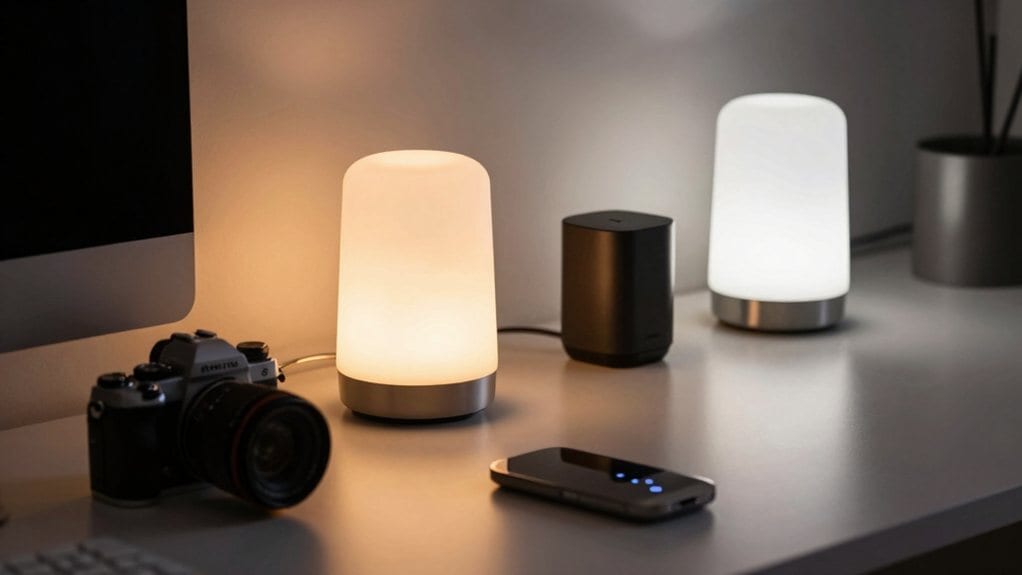
Once your lights appear in the discovery list, select them and assign descriptive names for easy voice control. With compatible bulbs, you can access millions of colors through voice commands for creating the perfect ambiance in your home.
If your lights require a hub, like Philips Hue Bridge, make sure it’s properly connected to your network before beginning the discovery process. Be aware that some bulbs like those from LIGHTINGINSIDE controlled by Smart Life App are not compatible with certain smart home systems.
Automating and Controlling Your Smart Lighting System
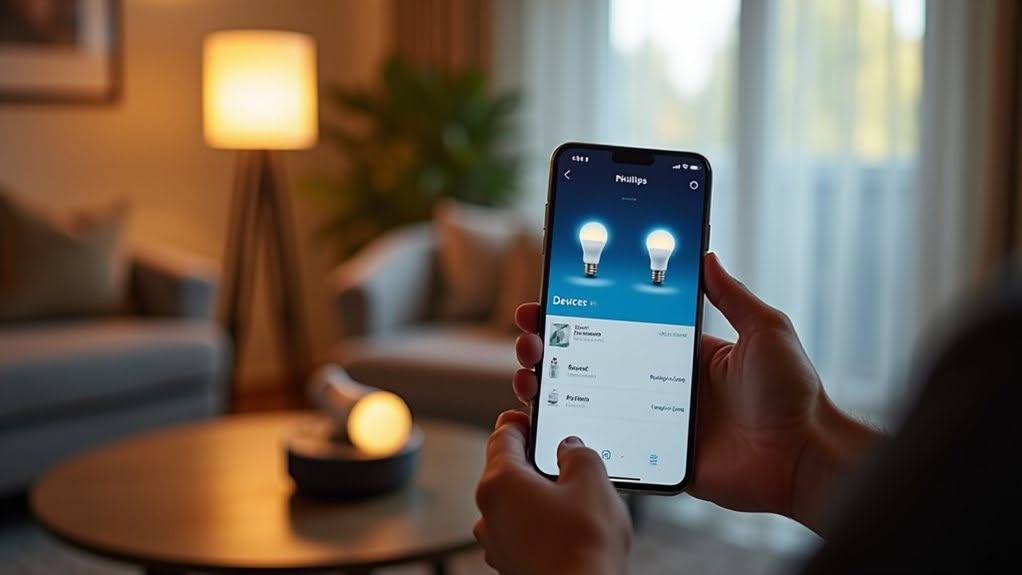
Once you’ve connected your smart lights to Alexa, you’ll discover a world of automation possibilities that extend far beyond basic on/off functionality. You can create schedules based on specific times, sunrise, or sunset to automate your lighting throughout the day.
For more convenience, group multiple lights together in the Alexa app for unified control. This allows you to manage entire rooms or areas with a single command. Integrating your system with other smart home devices creates a seamless interaction for an enhanced living experience. You can adjust the ambiance of your home by exploring color changing capabilities of compatible smart lights.
- Use voice commands like “Alexa, set kitchen lights to 50%” to adjust brightness levels
- Create custom scenes for different activities such as reading, movie watching, or dinner
- Set up routines triggered by motion sensors or your arrival home
- Schedule lights to simulate occupancy when you’re away for added security
Voice control works through any Alexa device in your home, making it easy to manage your lighting from anywhere.
Frequently Asked Questions
Can Alexa Control Non-Smart Traditional Bulbs?
No, Alexa can’t directly control traditional non-smart bulbs. You’ll need to install smart plugs or switches as intermediaries to control your regular bulbs with voice commands through Alexa.
Will Smart Bulbs Work if Wifi Goes Down?
Smart bulbs will lose most functionality if your WiFi goes down. You’ll only be able to use manual switches for basic on/off control, without voice commands, color changing, or dimming capabilities through Alexa.
Do Smart Bulbs Drain Power When Turned “Off”?
Yes, smart bulbs do drain power when turned “off.” They consume standby power (0.15-2.70 watts) to maintain connectivity for remote control. This phantom load can account for up to 51% of their total energy usage.
Can I Use Different Brand Bulbs Together?
Yes, you can use different brand bulbs together with Alexa. They’ll work as a unified system as long as all brands are Alexa-compatible and properly set up on the same network or compatible hub.
What Happens to Light Settings During Power Outages?
Most smart bulbs turn on automatically after power is restored. You’ll find they don’t remember previous settings unless specifically designed to do so. This default behavior guarantees your bulbs remain responsive to commands afterward.
Final Thoughts
You’ve now successfully integrated your smart lights with Alexa through three simple steps. When properly set up, your voice-controlled lighting system offers convenience and energy efficiency for your home. You can further improve your experience by creating custom routines, grouping lights by room, or scheduling automatic adjustments. Remember to update your devices’ firmware regularly to maintain ideal performance and compatibility with Amazon’s evolving Alexa ecosystem.