
Yes, you can control Home Assistant remotely through several secure methods. Options include using the Home Assistant Cloud subscription (Nabu Casa), setting up a VPN like Tailscale or WireGuard, implementing Cloudflare tunnels, or configuring Nginx Proxy Manager with SSL certificates. The Home Assistant companion app for mobile devices allows full control away from home, including access to automations, notifications, and location-based triggers. Each remote access solution offers different levels of security and ease of setup.
Setting Up Remote Access Security Options
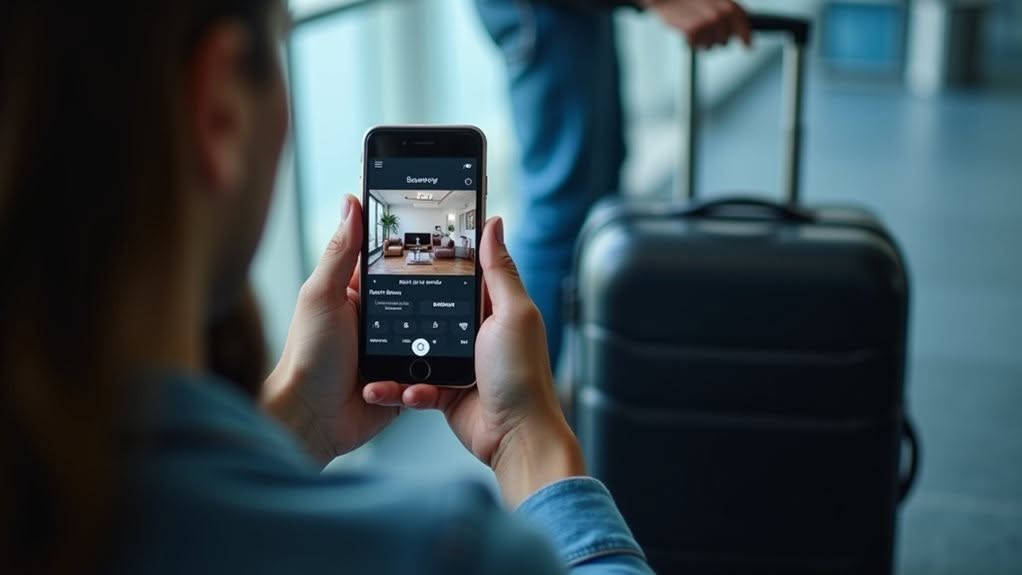
When you want to control your smart home from anywhere, choosing the right remote access method is crucial for balancing convenience and security.
VPN solutions like Tailscale or WireGuard offer the most secure approach by connecting directly to your home network without exposing your system to the internet. They require client installation on all devices but eliminate the need for public DNS records. Strong passwords are essential when using VPN access to prevent unauthorized entry to your entire network.
VPNs provide ultimate security by creating a private tunnel to your smart home, keeping your system hidden from internet threats.
Cloud services such as Nabu Casa ($5.50/month) or Cloudflare ZeroTrust provide easier setup with end-to-end encryption, though they create public DNS entries making your login page internet-accessible. Using Nabu Casa also helps support Open Home Foundation while providing secure remote access capabilities.
For advanced users, NGINX with Let’s Encrypt certificates enables custom security controls like IP whitelisting and rate limiting, but requires technical knowledge to configure properly. Integrating smart home security systems with your remote access solution adds an extra layer of protection for monitoring your property from anywhere.
Dynamic DNS with port forwarding is simplest but potentially less secure, as it directly exposes your Home Assistant login page to the internet.
Remote Control Integration Fundamentals
With your remote access security in place, you’ll need to understand how Home Assistant manages remote controls at a fundamental level.
Home Assistant uses remote integration as a building block that other device integrations build upon, rather than functioning as a standalone feature.
This integration framework provides several important capabilities:
- Tracks remote states (On, Off, Unavailable, Unknown) both individually and through a combined global state
- Registers universal control actions like `remote.turn_on`, `remote.turn_off`, and `remote.send_command` for use in automations
- Creates a standardized way to control diverse remotes through consistent service calls
These fundamentals enable you to manage everything from IR blasters like Broadlink devices to Android TV remotes through Home Assistant’s interface. The remote integration also supports the remote.toggle action for quickly switching between states. For Broadlink universal remotes specifically, the system automatically creates entities when you configure the device, making setup more intuitive.
Device-specific integrations build upon this framework, extending functionality based on their unique hardware capabilities.
Mobile Device Control via Android App
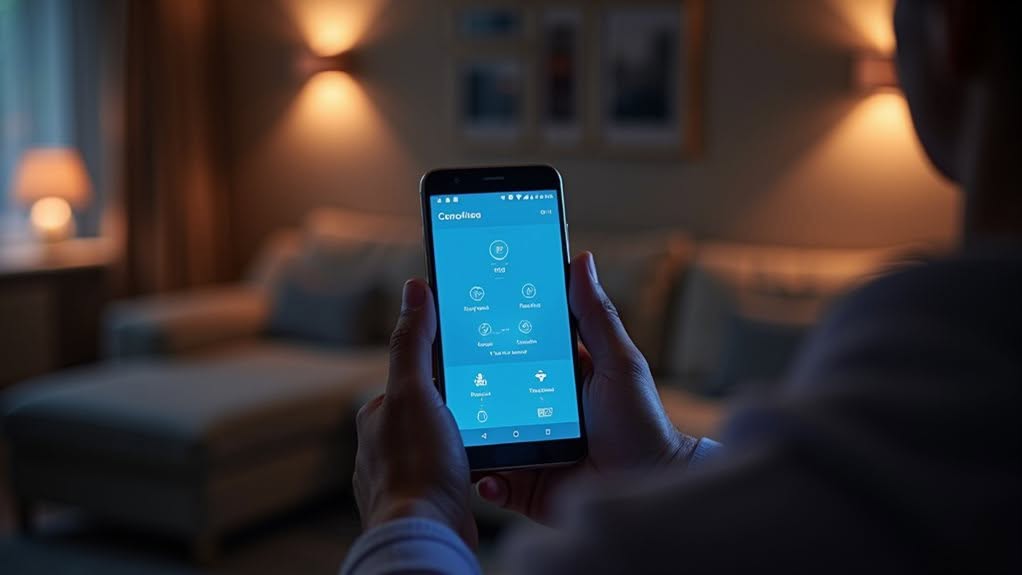
The Home Assistant Android app transforms your mobile device into a powerful remote control center for your smart home system.
You’ll gain access to your entire ecosystem through native Android integration, which places controls directly in your quick settings panel, notification drawer, or power menu on Android 11+ devices. You can even control specific Android TV devices by utilizing the Android TV Remote integration. You must be logged in to the app for these remote controls to function properly.
Setting up remote access requires configuring either a VPN connection, subscribing to Home Assistant Cloud, or properly securing your instance with SSL certificates to maintain both convenience and security.
Mobile Device Control via Android App
Home Assistant’s dedicated Android companion app transforms how you interact with your smart home from anywhere in the world.
With over a million users, this app provides seamless remote access to your entire smart home ecosystem through a secure connection.
The app delivers powerful features that extend beyond basic control:
- Real-time push notifications alert you to security events, environmental changes, or custom triggers, often including camera snapshots and interactive action buttons.
- Location-based automations activate when you enter or leave defined areas, enabling personalized “arriving home” or “leaving” routines.
- Home screen widgets and quick setting tiles offer one-tap control of frequently used devices, scenes, and automations without opening the app.
For full remote functionality, your Home Assistant instance must be properly configured for secure internet access.
Native Android Integration
Leveraging native Android capabilities, the Home Assistant companion app extends well beyond basic remote control functionality to deeply integrate with your device’s operating system.
The app accesses your phone’s sensors, sharing data like battery status, network conditions, and even health metrics with your Home Assistant system.
You can set up the app as your device’s default launcher, making it ideal for dedicated wall panels or kiosk displays. With 1.5 million installs and growing, the Android app has become the preferred method for remote Home Assistant control. Integration with Android Auto extends your smart home control to your vehicle dashboard.
The app utilizes modern frameworks like Jetpack Compose for the interface while maintaining a persistent WebSocket connection to your Home Assistant server for real-time updates. The Home Assistant Android app provides customizable themes that can match your personalized dashboards for a cohesive user experience.
This architecture guarantees responsive control even when you’re away from home.
For improved automation, the app provides quick settings tiles and action shortcuts that trigger your custom routines with minimal interaction.
Remote Access Setup
Setting up remote access to your Home Assistant system requires choosing the right method that balances security with convenience.
You’ll need to evaluate options based on your technical comfort level and security needs.
The Home Assistant Cloud subscription automatically encrypts all traffic between your mobile device and Home Assistant instance.
The Home Assistant Companion app offers the easiest solution but requires proper connection configuration.
When away from your home network, you’ll need one of these remote access methods:
- Home Assistant Cloud provides a secure, encrypted connection using a unique URL with minimal setup required.
- VPN services like Tailscale create secure peer-to-peer connections without exposing your network to the internet.
- Nginx Proxy Manager with SSL certificates from Let’s Encrypt offers improved security if you prefer self-hosting.
For ideal mobile performance, consider using Cloudflare Tunnels or a VPN to minimize latency while maintaining security.
Port forwarding was once common but poses security risks and isn’t recommended for modern Home Assistant setups.
VPN Solutions for Secure Remote Access
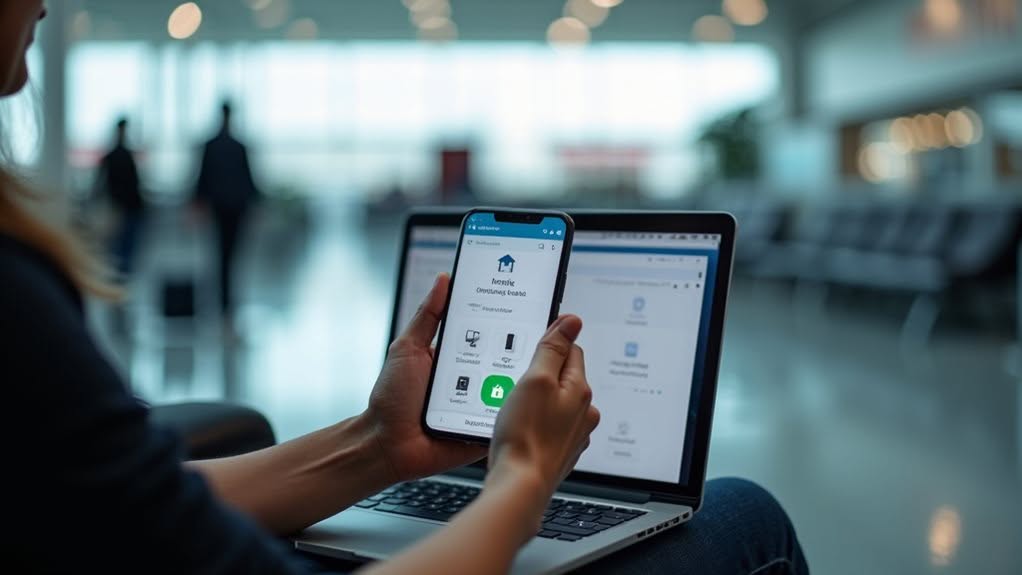
When accessing Home Assistant from outside your network, VPN solutions offer a secure and private connection method that avoids exposing your system directly to the internet.
Popular options include Tailscale and Cloudflare tunnels, which provide end-to-end encryption for your data.
Tailscale creates peer-to-peer connections between your devices, improving both privacy and speed.
Cloudflare tunnels, meanwhile, establish a secure pathway without requiring direct exposure of your Home Assistant instance.
Cloudflare tunnels create secure connections to your smart home without opening ports or exposing your system directly online.
These VPN approaches require client apps on your remote devices but considerably reduce your attack surface.
You’ll typically need to install software on both your Home Assistant host and any device you’ll use for remote access.
While VPNs add an extra layer of security, they may lack integrated support for voice assistants like Alexa or Google Assistant.
Automating Your Home Based on Geo-Location
Geo-fence triggers in Home Assistant enable your smart home to respond automatically when you enter or leave defined zones like home, work, or custom areas.
You can set up powerful automations that activate “away mode” when all household members have left, turning off lights, adjusting thermostats, and arming security systems to optimize energy usage and improve safety.
These location-based automations work through your mobile device’s GPS coordinates, which Home Assistant tracks through the companion app, creating a seamless experience that adjusts your home’s behavior based on your physical location.
Geo-Fence Triggered Actions
Transforming your home into a responsive environment that anticipates your needs can be accomplished through Home Assistant’s geofencing capabilities.
By defining virtual boundaries around locations like your home, workplace, or other frequent destinations, you can trigger specific automations when you enter or exit these zones.
Setting up geofencing requires the Home Assistant Companion App on your mobile device with proper location permissions enabled.
Your phone communicates with Home Assistant to report zone changes, allowing your smart home to react accordingly.
- Climate optimization – Adjust your thermostat when you’re heading home or leaving to save energy
- Security management – Automatically lock doors and arm alarms when everyone has left the premises
- Convenience automations – Turn on lights when you arrive after dark or power down non-essential devices when you’re away
Away Mode Optimizations
Leveraging your home’s intelligence while you’re away represents one of the most powerful applications of Home Assistant’s geolocation capabilities. The system can automatically adjust your HVAC, lighting, and security based on your actual location, markedly reducing energy waste.
When you and all family members exit your home’s geofence, automations can trigger “away mode” to set back your thermostat, turn off unnecessary lights, and activate security features. You can create layered conditions that require confirmation from multiple devices before enabling away mode, guaranteeing accuracy.
The proximity integration helps filter out minor GPS fluctuations through customizable tolerance settings, enhancing detection reliability.
Your system can even integrate local weather data for your current location to optimize home conditions while you’re gone.
Device-Specific Remote Control Options
When you’re ready to control specific devices remotely through Home Assistant, you’ll need to understand the unique capabilities each device type offers. Each remote entity supports basic functions like turn_on, turn_off, and toggle actions that you can access through the Developer Tools or automate via YAML.
Unlock your home’s potential by mastering the basic functions of remote entities in Home Assistant.
For specific devices, different integration methods are available:
- Android TV devices can be controlled through the Android TV Remote integration, which supports both auto-discovery and manual configuration.
- IR blasters allow you to control non-smart devices by learning commands from existing remotes or using online codes.
- Remote device states can be monitored and automated, letting you create routines based on state changes.
Your remote devices maintain individual states (On, Off, Unavailable, Unknown), with the all_remotes entity providing unified control across multiple devices.
Hardware Remote Controls and Their Integration
Hardware remote controls offer a tangible way to interact with your Home Assistant system beyond touchscreens and voice commands.
IR blasters like Broadlink RM4 mini allow you to control infrared devices locally without internet dependency. These devices learn commands from your existing remotes, bringing traditional appliances into your smart home ecosystem.
For wider coverage, RF-capable hubs such as LinknLink e-hub provide both IR and RF control capabilities, plus environmental sensors. You can place multiple blasters throughout your home for extensive coverage.
Home Assistant’s core Remote integration serves as the foundation for device control, supporting commands like turn_on, turn_off, and toggle.
This framework allows you to create centralized control of multiple remotes through the Home Assistant interface or custom automations.
Frequently Asked Questions
Can I Control Home Assistant Using Voice Assistants While Away?
Yes, you can control Home Assistant remotely using voice assistants like Google Assistant or Alexa. Set up Nabu Casa for secure access, or use the Home Assistant mobile app with Assist for voice commands while away.
Does Remote Access Work With Limited or Unstable Internet Connections?
Yes, remote access works with limited connections but performance varies. You’ll experience more latency and dropouts. WireGuard VPNs and Cloudflare Tunnels handle instability better than direct port forwarding or Home Assistant Cloud.
How Much Data Does Remote Control Consume on Mobile Plans?
Remote control typically uses minimal data (under 100MB monthly) for basic commands. You’ll consume more if you’re streaming cameras (gigabytes per hour) or using location tracking with high accuracy (hundreds of megabytes monthly).
Can Multiple Users Remotely Control the Same Home Assistant Instance Simultaneously?
Yes, multiple users can remotely control your Home Assistant simultaneously. You’ll need to create separate user accounts with appropriate permissions, and each person can connect through the app or web interface from anywhere.
Will Remote Access Work During Power Outages at Home?
No, you won’t have remote access during a power outage. Your Home Assistant server and network equipment need electricity to function. Consider a UPS or independent cellular monitoring device to receive outage notifications instead.
Final Thoughts
You’ve now got multiple options for controlling your Home Assistant from anywhere. Whether you choose mobile apps, VPN access, or geo-location features, the key is balancing convenience with security.
Remember to set up strong encryption and two-factor authentication to protect your smart home system. With proper configuration, you’ll enjoy the peace of mind that comes from managing your home’s lights, temperature, and security no matter where you are.


