To set up a facial recognition doorbell camera, select a model with at least 1080p resolution and HDR capability. Mount the camera 4.5-5 feet high, facing your door, and connect to power according to manufacturer instructions. Download the official app, create an account, and enable facial recognition in settings. Position the camera with a 15-30 degree downward tilt to avoid glare and optimize face detection. The proper configuration guarantees accurate identification and minimizes false alerts.
Choosing the Right Facial Recognition Doorbell Camera
When selecting a facial recognition doorbell camera, you’ll need to prioritize resolution quality, as this directly impacts identification accuracy.
Cameras with at least 1080p resolution provide clearer images for reliable face detection, while HDR technology improves clarity in varied lighting conditions.
Consider your field of view requirements, with 130° to 145° offering ideal coverage for capturing complete facial features.
Dual-camera systems provide improved functionality by separating face and package detection capabilities.
Evaluate night vision features, especially color night vision, which enables 24/7 face recognition even in low-light environments.
The Google Nest Doorbell (Wired) offers sophisticated facial recognition technology at a competitive price point of $179.99 with Nest Aware subscription.
This becomes essential for security after dark.
Check compatibility with your existing smart home ecosystem like Google Home or Amazon Alexa.
Integration with smart locks can enable automatic access control when familiar faces are detected, creating a seamless security experience.
Products like the Ring Doorbell Pro 2 offer head-to-toe HD video for comprehensive monitoring of your entryway, improving visitor identification accuracy.
Implementing smart security cameras can significantly enhance your home’s overall protection by creating a comprehensive surveillance system beyond just the entryway.
Initial Hardware Setup and Network Connection
Before diving into advanced facial recognition features, proper hardware setup and network connection are essential foundations for your doorbell camera system.
Start by verifying that all components are included in your package: the doorbell camera, mounting bracket, screws, and power adapter.
Mount the camera at 4.5 to 5 feet height for ideal face detection, facing directly toward your door.
For wired models, connect to your existing doorbell wiring or power adapter following the manufacturer’s diagrams.
Battery-powered models require proper battery installation and seating.
Use the manufacturer’s app to add your device, typically by scanning a QR code.
Configure Wi-Fi settings, guaranteeing strong signal strength at your installation location.
Complete the setup by updating firmware before proceeding to advanced facial recognition configurations.
Choose a compatible doorbell camera system like Blink or Nest that integrates well with Home Assistant for facial recognition capabilities.
For DIY projects, consider using Raspberry Pi 4 as your system’s base with a Wyze Cam for image capture and processing.
Installing the Mobile App and Creating User Accounts
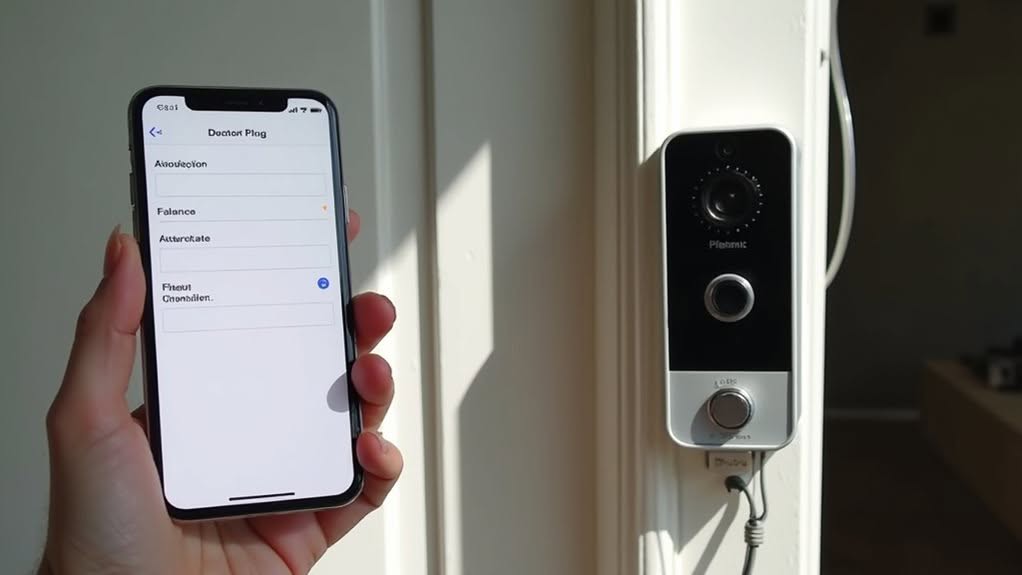
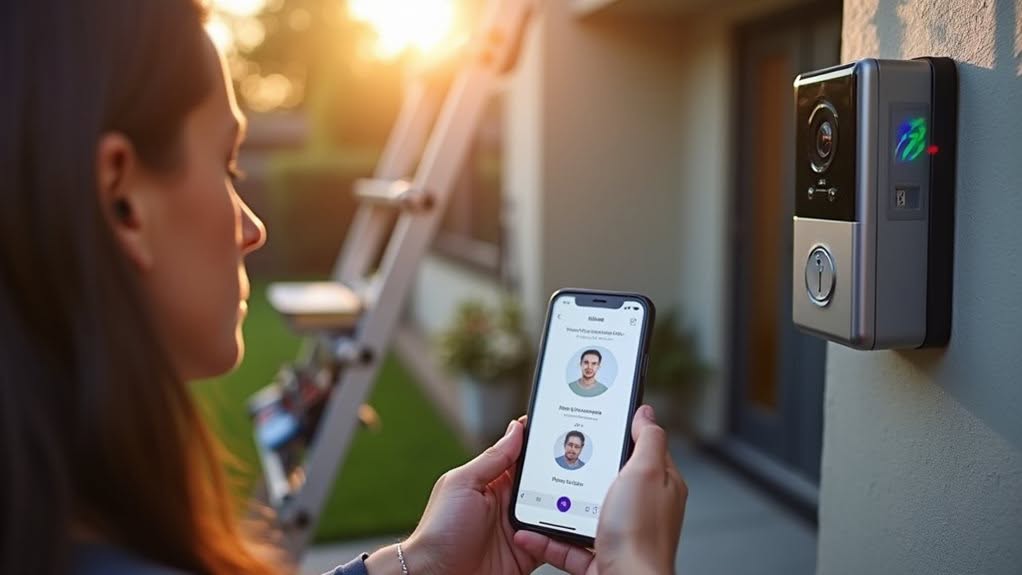
To set up facial recognition on your doorbell camera, you’ll first need to download the manufacturer’s official app from your device’s app store and install it on a compatible smartphone.
After installation, create an account by providing your email address and setting a secure password, then verify your identity through the authentication link or code you’ll receive.
Once logged in, you can add additional users with customized permission levels that determine their access to settings, video feeds, and recognition features. For devices like the Mini Handsfree Wi-Fi system, the facial recognition function is available free of charge. For optimal facial recognition performance, consider integrating with specialized services like Facebox or TensorFlow that can enhance identification accuracy.
App Selection Process
Selecting the right mobile application forms the foundation of your facial recognition doorbell system’s functionality. When choosing an app, prioritize those specifically designed to support facial recognition features in doorbell cameras.
Verify the app’s compatibility with your smartphone’s operating system and doorbell hardware specifications before downloading. Security should be a top consideration—look for apps with strong data encryption and privacy protections.
The ideal app will offer real-time notifications and advanced AI processing capabilities. For Android devices, IP Webcam app is an excellent choice that integrates well with the MotionEye surveillance system. Check user reviews and manufacturer recommendations to gauge reliability and ease of use.
Download only from trusted sources like the Apple App Store or Google Play Store. This guarantees you’re getting legitimate software that won’t compromise your home security system with malware or inadequate performance.
After installing the app, you’ll need to configure it for face detection by accessing the AI/Event settings and establishing appropriate detection parameters.
Account Creation Steps
Once your doorbell hardware and app selection are finalized, you’ll need to set up the software components of your facial recognition system.
Start by downloading the manufacturer’s official app from your phone’s app store, making sure your smartphone meets all compatibility requirements. Allow necessary permissions for camera, microphone, and notifications during installation. The app will utilize AI technology to detect and recognize familiar faces when they approach your doorbell.
Next, create a user account by opening the app and selecting the “new user” option. Enter a valid email address and create a strong password that includes uppercase letters, numbers, and symbols. Complete the verification process by clicking the link sent to your email.
After logging in, register your doorbell camera by scanning its QR code or manually entering the serial number. Follow the on-screen instructions to connect the device to your home Wi-Fi network. Some systems may require a separate HomeBase device for enabling advanced facial recognition capabilities.
User Permission Levels
Effective facial recognition doorbell systems require carefully structured user permission levels to maintain security while providing appropriate access.
You’ll need to establish different roles within your system. As the owner or administrator, you’ll have full control over the entire system, including adding users and adjusting permissions.
Regular residents will receive basic access privileges, primarily for entry and exit through the main door. For visitors, you can create temporary access with time restrictions.
Staff members may require special permissions to access additional areas like utility rooms.
Your system’s mobile app will allow centralized management of all users. You can dynamically adjust permissions in real-time, implement granular controls for specific areas, and maintain an audit trail of all permission changes for security purposes.
Activating and Configuring Facial Recognition Features
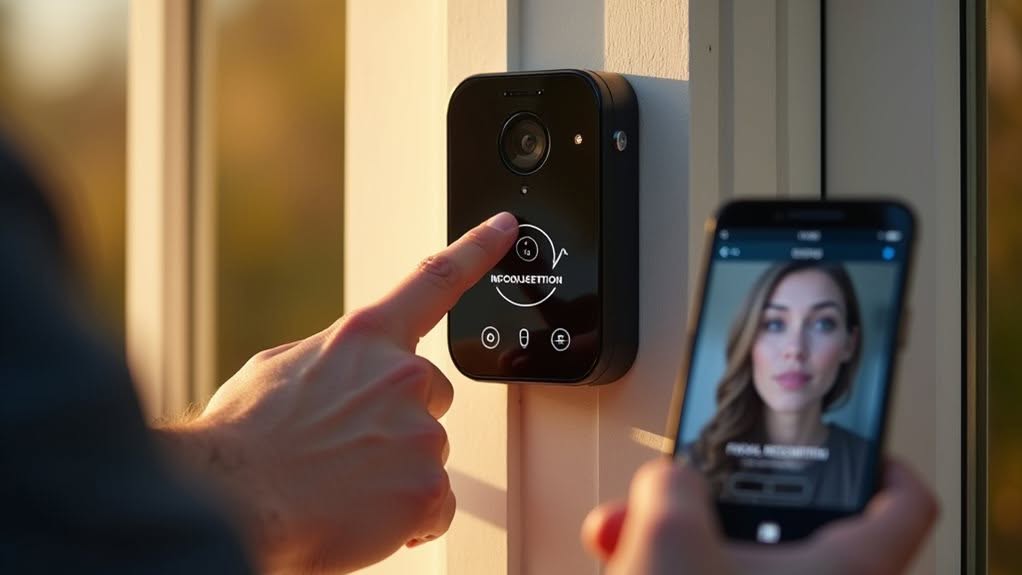
Before activation, verify your doorbell’s firmware is updated to the latest version to support all facial recognition capabilities.
You’ll need administrator access to enable these advanced features.
- A blue confirmation screen appears when facial recognition is successfully activated
- Green outlines surround detected faces in the live view interface
- Thumbnail images of recognized individuals appear alongside their names
- Red notification badges highlight unidentified visitors requiring action
Once enabled, you can begin adding faces to your database by uploading photos or capturing images directly through the app.
Customize notification preferences to receive alerts only for the faces that matter most.
Optimal Placement for Maximum Recognition Accuracy
Proper placement of your facial recognition doorbell camera directly affects its ability to accurately identify visitors.
Mount your camera 4 to 6 feet above the ground to guarantee faces appear centered in the frame.
Position the camera with a downward tilt of 15-30 degrees to capture faces clearly while reducing glare from sunlight.
Avoid placing it where branches, decorations, or architectural elements might obstruct the view.
The ideal detection zone starts about 7 feet from the camera, with effective facial recognition occurring between 7-10 feet away.
Make certain the camera isn’t directly facing a light source, as backlighting can make faces appear too dark for recognition.
Keep your camera lens clean and position it so visitors approach from the front rather than the side.
Regular maintenance will maintain ideal performance over time.
Setting Up Custom Alerts and Smart Home Integration
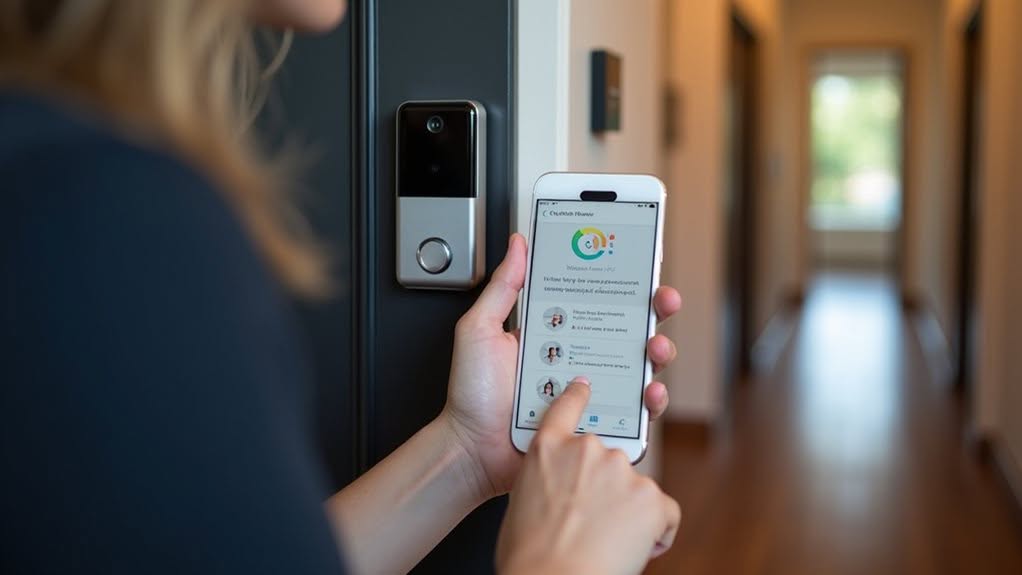
Once you’ve positioned your camera correctly, configuring custom alerts and smart home integration will transform your doorbell into a powerful security hub.
Start by defining specific motion detection zones to reduce unnecessary notifications and adjust sensitivity levels to prevent false alarms.
Set up your preferred alert methods—choose between email, push notifications, or text messages based on your system’s capabilities.
Then integrate your doorbell with your existing smart home ecosystem.
- Create automated scenes that turn on porch lights when motion is detected
- Configure voice commands through Google Assistant or Siri for hands-free control
- Set up custom triggers for package deliveries or specific visitor recognition
- Establish different alert preferences for various household members
Most advanced features require subscription services like Nest Aware or Ring Home Plans, so evaluate whether these additional costs align with your security needs.
Maintaining Privacy, Security and Compliance
Safeguarding your privacy and staying legally compliant requires careful attention when using facial recognition technology in your home.
You’ll need to understand the boundaries of legal surveillance in your area, as states like California, Illinois, and Oregon have specific laws governing the collection of biometric data.
Protect personal information by implementing strong encryption, storing data locally when possible, and establishing clear consent procedures for anyone whose facial data might be captured.
Protecting Personal Data
While facial recognition technology offers convenience and improved security, it creates considerable personal data vulnerabilities that require careful management.
You must implement strong data minimization practices by only collecting facial data crucial for doorbell functionality.
Encrypt all biometric information both during transmission and storage to prevent unauthorized access. Process data locally when possible rather than sending it to cloud servers, greatly reducing exposure risks.
- A small lock icon on your app indicating encrypted facial data storage
- A simple delete button allowing instant removal of stored facial profiles
- A local processing indicator showing data remaining on your device
- A consent notification display appearing when visitors approach
Retain facial data only for the minimum time necessary, and always provide clear options for users to delete their information.
Regularly update your doorbell’s firmware to patch security vulnerabilities.
Legal Surveillance Boundaries
Beyond data protection practices, you’ll need to maneuver complex legal boundaries when implementing facial recognition doorbell cameras.
Understand that outdoor surveillance generally doesn’t infringe on privacy expectations, but audio recording typically requires consent from at least one party in the conversation.
Fifteen states have laws limiting facial recognition use, with some requiring warrants for law enforcement access.
Pay special attention to state-specific biometric privacy laws. Illinois, Washington, and Texas have thorough regulations requiring notice and consent before collecting biometric data.
If you’re in New York City, the Tenant Data Privacy Act requires landlords to provide written disclosures and obtain consent.
Remember that your home system differs from commercial ones—it’s not connected to large databases.
Still, implementing proper security measures is crucial to protect any collected biometric data and avoid potential legal scrutiny.
Frequently Asked Questions
How Long Does Facial Recognition Data Remain Stored?
Facial recognition data typically stays stored for 30-90 days in most systems. Your storage duration depends on whether you’re using cloud services (7-30+ days) or local storage, which retains data until it’s full.
Can Facial Recognition Work in Complete Darkness?
Yes, facial recognition works in darkness if your doorbell camera has infrared LEDs. These emit invisible light that illuminates faces for the camera while you can’t see anything, enabling nighttime identification without visible lighting.
Will the System Recognize Children as They Grow?
Yes, but you’ll need to update the database regularly as children’s facial features change rapidly. Your system’s accuracy will depend on frequent profile updates and quality images in consistent lighting conditions.
How Many Faces Can a Typical System Store?
Most residential systems can store between 20-50 faces. You’ll find this sufficient for immediate family and regular visitors, though exact limits aren’t often advertised. Higher-end models may offer expanded storage capacity.
Does Wearing Masks or Sunglasses Defeat Recognition Capabilities?
Yes, masks and sunglasses greatly reduce recognition capabilities. Your doorbell camera’s accuracy drops when these items cover critical facial features. Even advanced AI systems struggle to identify you when wearing both simultaneously.
Final Thoughts
With proper setup and configuration, your facial recognition doorbell camera can greatly improve your home security. You’ll need to keep the system updated, maintain clean lenses, and regularly review recognized faces in your database. Remember to follow privacy regulations and inform visitors about your camera’s capabilities. By balancing security needs with privacy considerations, you’ve created a smart entry point that offers both convenience and protection.