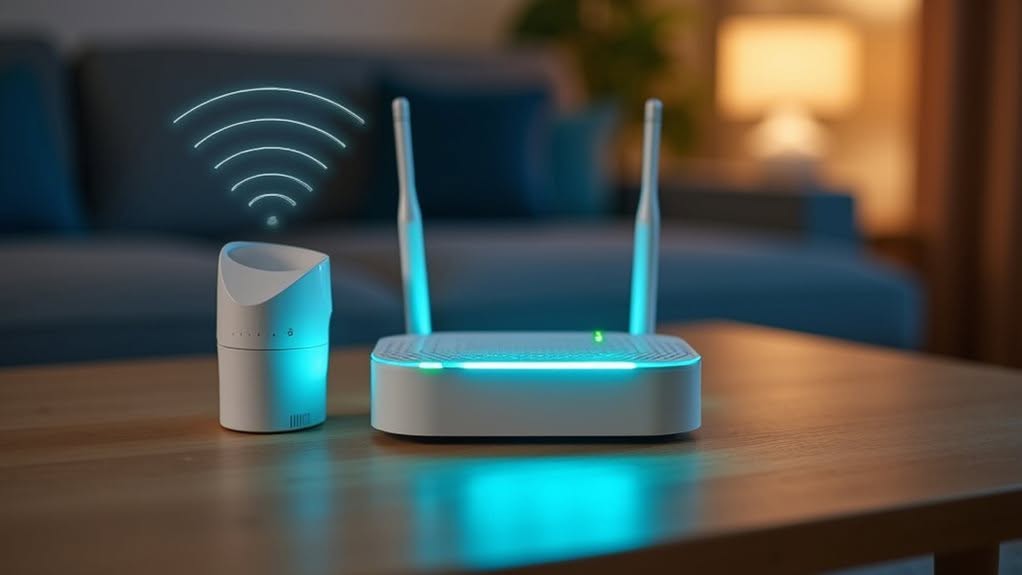
Yes, you can use Zigbee and WiFi together in your smart home. Both technologies operate in the 2.4 GHz frequency band, so proper channel selection is important to minimize interference. Place your Zigbee coordinator at least 2 meters away from WiFi routers and consider using non-overlapping channels (Zigbee 15, 20, or 25 with WiFi 1, 6, or 11). For peak performance, you might move your WiFi network to 5 GHz. The right setup guarantees these technologies work harmoniously.
How Zigbee and WiFi Coexist in Smart Homes
While both Zigbee and WiFi can operate in your smart home simultaneously, they often compete for the same 2.4 GHz spectrum, creating potential interference issues.
This competition typically affects Zigbee more severely due to its lower transmission power compared to WiFi’s stronger signals.
When interference occurs, you’ll notice your Zigbee devices becoming less responsive as their messages fail and require retransmission.
This not only slows performance but also drains batteries faster in wireless sensors and controllers.
Modern solutions implement coexistence strategies like IEEE 802.15.2 Packet Traffic Arbitration, which allows Zigbee to signal WiFi devices before transmitting.
Coexistence protocols enable Zigbee devices to coordinate with WiFi systems, preventing transmission collisions before they occur.
This coordination prevents simultaneous transmissions and improves reliability.
Three-wire PTA implementations offer the most flexible options for managing coexistence in complex systems with multiple radios.
For peak performance, consider strategic channel planning—run your WiFi on channels 1 or 6 while keeping Zigbee on channels 20 or 25 to minimize spectral overlap. Understanding sideband lobe effects from WiFi networks is essential when positioning your devices to reduce interference.
Understanding Frequency Bands and Channel Overlap
Both Zigbee and WiFi operate in the same 2.4 GHz frequency band, which means they can potentially interfere with each other in your smart home.
You can minimize interference by selecting Zigbee channels (such as 11, 15, 20, and 25) that fit within the gaps between WiFi channels, especially if you’re using non-overlapping WiFi channels 1, 6, and 11.
For ideal performance, consider using WiFi’s 5 GHz band when possible, keeping your router away from Zigbee hubs, and monitoring your network to identify and resolve any interference issues that might arise. Zigbee’s mesh network topology provides additional reliability by creating multiple transmission paths that can help overcome interference challenges. Zigbee devices typically have lower power consumption compared to WiFi devices, which can be advantageous for battery-operated smart home products.
Frequency Band Comparison
Understanding the frequency bands used by Zigbee and WiFi reveals why these technologies can conflict when operating in the same environment.
Zigbee primarily operates in the 2.4 GHz ISM band with 16 channels worldwide, but it’s also available in the 915 MHz (North America) and 868 MHz (Europe) bands.
WiFi uses both 2.4 GHz and 5 GHz bands.
The complete overlap between Zigbee’s and WiFi’s 2.4 GHz bands creates notable interference potential. To minimize this interference, Zigbee devices can switch to less congested channels for better network performance. Many routers like the TP-Link Archer series provide configuration options to minimize this interference.
Zigbee’s 2.4 GHz channels are 5 MHz apart with 2 MHz bandwidth, while WiFi channels occupy 20-40 MHz, meaning one WiFi channel can overlap multiple Zigbee channels.
Data rates differ dramatically: Zigbee operates at up to 250 kbps in the 2.4 GHz band, while WiFi can reach hundreds of Mbps or even 9.6 Gbps with WiFi 6.
Channel Selection Strategy
Selecting the right channels for your Zigbee and WiFi networks represents one of the most critical steps for guaranteeing they coexist peacefully.
For best results, pair Zigbee channel 11 with WiFi channels 6 or 11, Zigbee 15 with WiFi 11, Zigbee 20 with WiFi 1, or Zigbee 25 with WiFi 1 or 6. These combinations minimize direct interference between the technologies.
If you’re using all three non-overlapping WiFi channels (1, 6, and 11), consider Zigbee channels 15, 20, or 25 for the least overlap.
In crowded environments, you might need to limit your WiFi deployment to just two channels.
Remember that changing Zigbee channels later requires re-pairing all devices, so careful initial planning is crucial. Zigbee channels 24-26 are generally considered optimal for performance with minimal interference from other protocols.
Physical separation between your WiFi and Zigbee devices will further reduce potential interference issues. The optimal channels for Zigbee networks are typically ZLL channels (11, 15, 20, or 25) as they provide the best performance with minimal interference.
Interference Mitigation Techniques
When Zigbee and WiFi occupy the same 2.4 GHz ISM band, interference becomes inevitable without proper mitigation strategies.
Physical separation provides a simple first line of defense against signal conflicts. You’ll achieve better performance by placing Zigbee devices away from WiFi routers, electrical wiring, and household appliances. Walls and cabinetry can act as natural barriers to reduce signal overlap. High-power WiFi signals can completely drown out the low-power Zigbee transmissions if positioned too close together. Zigbee typically operates at higher power levels than Wi-Fi, which can result in signal interference when both protocols overlap.
Consider moving your WiFi network to 5 GHz bands, which eliminates 2.4 GHz conflicts altogether. If that’s not possible, select Zigbee channels 15, 20, or 25, which experience minimal overlap with common WiFi channels.
Advanced Zigbee hardware with multi-antenna configurations and signal processing capabilities can actively reject WiFi interference.
Creating a robust Zigbee mesh network helps overcome localized interference by routing signals through cleaner paths.
The Zigbee Coordinator: Connecting Your Devices
At the heart of every Zigbee network is the coordinator, which serves as both the network’s foundation and its security manager.
Your coordinator hardware options range from dedicated USB sticks like the CC2531 to smart home hubs that include Zigbee functionality built-in.
The coordinator performs critical network management functions including selecting communication channels, managing device connections, and acting as the trust center for distributing security keys to new devices.
Subheading Discussion Points
The central brain of any Zigbee network, your coordinator device manages every aspect of your smart home’s Zigbee communications.
It’s responsible for creating and maintaining your network while handling security and authentication processes.
When setting up your Zigbee system, you’ll need to position the coordinator centrally in your home for ideal coverage.
This single device controls which products can join your network and manages the encryption keys necessary for secure communication.
To add new devices, you’ll typically need to put them in pairing mode while they’re physically close to the coordinator.
The coordinator will authenticate them and establish secure connections.
If you encounter connection issues, try moving devices closer during pairing, checking for interference from other wireless devices, or reviewing debug logs to identify specific failure points.
Coordinator Hardware Options
Choosing the right coordinator hardware forms a critical foundation for your Zigbee network‘s performance and reliability. USB dongles like the CC2531 or CC2652-based sticks represent popular options that plug directly into your host device.
Silicon Labs EmberZNet-based radios offer widely compatible solutions but typically require firmware updates for peak performance. Raspberry Pi shields and adapters from manufacturers like Elelabs provide specialized coordinator hardware.
While Wi-Fi based Zigbee bridges exist, they’re generally not recommended for coordinator use due to connection instability. These devices often require custom firmware flashing to work properly.
For best results, connect your coordinator directly to your host via USB rather than through Wi-Fi, WAN, or VPN connections. This direct connection guarantees stable, low-latency communication and prevents network instability issues that could affect all your Zigbee devices.
Network Management Functions
Beyond selecting the right hardware, understanding your Zigbee coordinator‘s network management functions reveals why it’s truly the brain of your smart home system.
Your coordinator initiates the network by establishing critical parameters like PAN ID and operating channel. It’s responsible for managing your entire network topology, including adding and removing devices as needed.
The coordinator maintains routing tables and determines the best data transmission paths within your mesh network. It’s the only device that can form the network, and it handles beacon transmissions that help other devices discover and communicate with each other.
While your network can briefly function if the coordinator powers down, you’ll need it for full functionality and to allow devices to rejoin.
It also manages security functions, authenticating devices and encrypting data to protect your smart home from unauthorized access.
Setting Up a Zigbee Network Alongside WiFi
When establishing a Zigbee network in your home, proper planning guarantees it can coexist peacefully with your existing WiFi setup. Start by placing your Zigbee Coordinator near your WiFi router to ascertain stable integration between both networks.
Select appropriate channels to minimize interference – choose Zigbee channels 15, 20, or 25, which fall between common WiFi channels 1, 6, and 11. This spectrum separation considerably reduces cross-network disruptions.
- Position Routers approximately every 10 meters throughout your home to create a robust mesh network.
- Add Router devices first before End Devices to establish a strong communication backbone.
- Place WiFi and Zigbee access points physically apart to further reduce interference potential.
Follow a strategic deployment sequence: Coordinator first, then Routers, and finally End Devices at their permanent locations.
Minimizing Interference Between Wireless Technologies
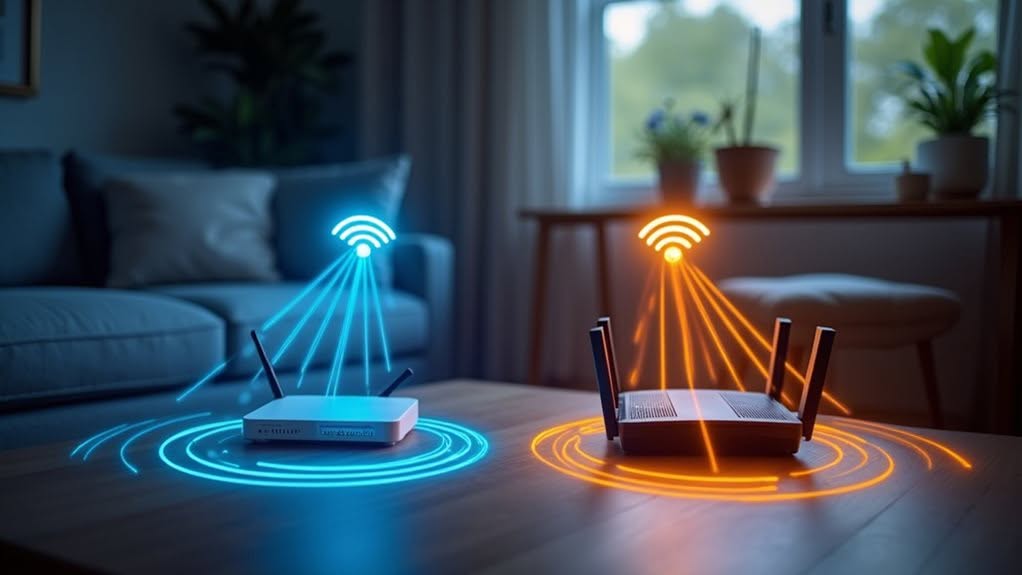
While both Zigbee and WiFi can coexist peacefully in your home, you’ll need to take specific steps to minimize interference between them.
Selecting non-overlapping channels is essential—consider using Zigbee on channel 15 or 20 while keeping your WiFi on channel 1 or 11 to create frequency separation.
You can further reduce interference by physically placing your Zigbee coordinator away from WiFi routers and adjusting transmit power levels on both networks to prevent signal domination.
Channel Selection Strategies
One of the most critical aspects of successfully running Zigbee and Wi-Fi networks together involves strategic channel selection to minimize interference between these technologies.
When configuring your networks, focus on placing Zigbee channels where Wi-Fi signals are weakest. The ideal Zigbee channels are 15, 20, and 25, as these fall between the common Wi-Fi channels 1, 6, and 11.
- Use Zigbee channel 20 when your primary Wi-Fi operates on channel 1
- Pair Zigbee channel 25 with Wi-Fi channels 1 or 6
- Select Zigbee channel 15 when using Wi-Fi channel 11
Before finalizing your setup, scan your environment with Wi-Fi analyzer tools to identify existing network traffic.
Physical separation between your Zigbee coordinator and Wi-Fi router will further reduce interference problems.
Physical Placement Matters
The physical placement of your Zigbee and Wi-Fi devices plays an essential role in determining how well they coexist in your smart home ecosystem.
Keep your Zigbee coordinator and Wi-Fi router at least 2 meters apart to minimize signal interference. This separation helps prevent Wi-Fi’s stronger transmissions from overwhelming Zigbee’s lower-power signals.
Use USB extension cables to move Zigbee adapters away from interference sources. Position devices away from metal objects, dense walls, and electromagnetic noise generators like appliances or power supplies.
Elevate your devices when possible and place Zigbee routers centrally to strengthen your mesh network. This strategic positioning creates alternative signal paths that can bypass areas with high interference.
Remember to reassess device placement as you add more smart home equipment, since RF dynamics change with each new device.
Adaptive Power Management
Since both Zigbee and WiFi operate on the same 2.4 GHz frequency band, interference between these technologies presents a considerable challenge for smart home users.
Implementing adaptive power management strategies can greatly reduce these problems in your smart home setup.
Your Zigbee network can employ several techniques to minimize interference:
- Dynamic channel switching when packet loss exceeds critical values
- Automatic adjustment of transmit power based on communication distance
- Implementation of algorithms that monitor and respond to changing interference patterns
Modern Zigbee systems can detect WiFi interference by monitoring packet loss rates every few minutes, then make adjustments accordingly.
By selecting channels less affected by WiFi signals, your Zigbee devices can maintain reliable connections.
Some advanced implementations even incorporate error correction techniques like Reed Solomon codes to decode polluted packet payloads, further improving network stability.
Practical Applications: When to Use Zigbee vs. WiFi
Deciding between Zigbee and WiFi requires careful consideration of your specific smart home needs and device requirements.
Choose Zigbee for battery-powered devices like motion sensors, door/window sensors, and smart thermostats where long battery life is crucial. Its mesh network structure works perfectly for smart lighting systems, providing reliable control even in larger homes.
WiFi is your best option for devices requiring high data throughput, such as security cameras, video doorbells, and smart TVs. You’ll want WiFi for applications that need internet connectivity or stream media content regularly.
For extensive smart home setups, you can use both technologies simultaneously. Place WiFi devices where power outlets are accessible and high bandwidth is needed, while deploying Zigbee for battery-operated sensors and controls throughout your home.
Consider implementing an AI security system that integrates with both protocols to maximize protection while maintaining the unique benefits of each wireless technology.
Integrating Zigbee Devices With Home Automation Systems
Integrating Zigbee devices with your existing home automation system creates a powerful, unified smart home experience that bridges multiple technologies.
Home Assistant and similar platforms abstract different protocols into common entities, allowing you to control both Zigbee and WiFi devices through a single interface.
To create this integrated environment, you’ll need:
- A compatible Zigbee coordinator or hub connected to your automation system
- Proper channel selection to minimize interference on the shared 2.4 GHz band
- Software that supports cross-protocol automations (like Home Assistant’s ZHA)
The integration process typically involves configuring your Zigbee network first, then adding WiFi devices through their respective integrations.
Once connected, you can create automation rules where WiFi sensors trigger Zigbee lights, or vice versa, all managed through one cohesive system.
Power Consumption Differences in IoT Networks
When comparing smart home protocols, power consumption represents one of the most prominent differentiators between Zigbee and WiFi technologies.
Zigbee devices are designed specifically for low-power operation, typically consuming just 10–100 mW during active states. This efficiency allows battery-powered sensors and controllers to operate for years without replacement.
In contrast, WiFi devices draw considerably more power due to frequent communication and active connection maintenance. Even with power-saving features, WiFi can’t match Zigbee’s energy efficiency for battery-operated IoT applications.
Your choice between these protocols should consider your device’s power source. For plugged-in devices requiring high bandwidth, WiFi works well.
For battery-powered sensors or infrequently used controls, Zigbee offers superior energy efficiency and longer battery life.
Troubleshooting Common Zigbee-WiFi Coexistence Issues
Despite running simultaneously in many homes, Zigbee and WiFi networks often experience interference that can disrupt your smart home’s performance. This occurs because both technologies share the crowded 2.4 GHz frequency band, with WiFi signals typically overpowering the weaker Zigbee transmissions.
When troubleshooting these coexistence issues, focus on these key strategies:
- Position your WiFi router at least 2 meters away from Zigbee devices to reduce direct signal interference.
- Use WiFi analyzer tools to identify less congested channels, then adjust your Zigbee network accordingly.
- Implement periodic network resets that allow devices to re-pair on clearer channels.
Regular monitoring of your network performance can help you detect interference patterns early. Many connectivity problems can be resolved through proper channel selection and thoughtful device placement throughout your home.
Optimizing Device Placement for Maximum Coverage
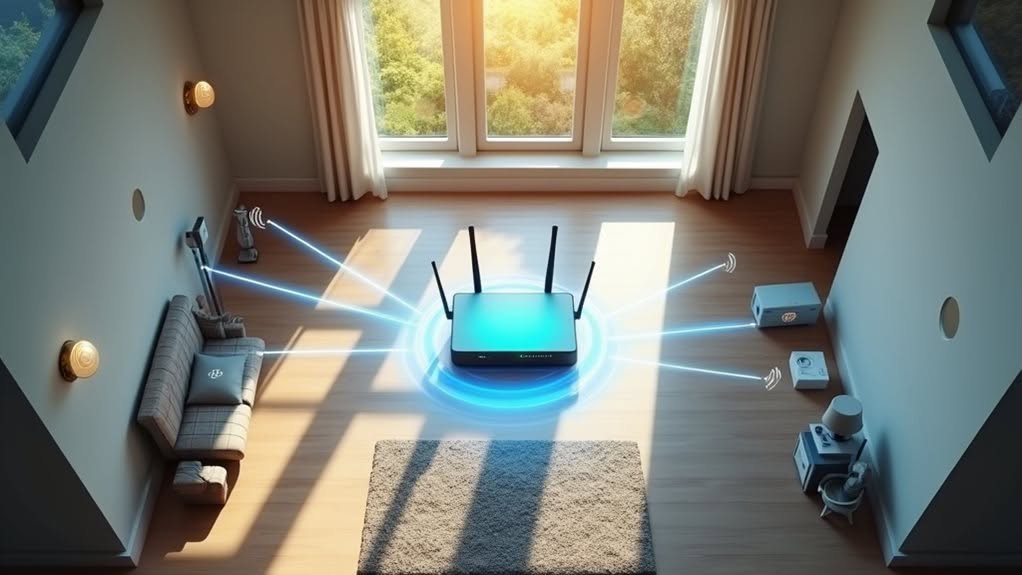
Now that you’ve addressed interference issues, proper device placement becomes the next key factor in creating a reliable Zigbee network alongside WiFi.
Position your Zigbee coordinator centrally within your home, raised and away from WiFi routers and other 2.4 GHz devices. Using a USB extension cable can help achieve ideal placement away from obstructions.
Central coordinator placement is crucial—elevate it away from WiFi routers and interference sources for optimal Zigbee network performance.
Deploy mains-powered Zigbee routers (smart plugs or dedicated repeaters) strategically throughout your space, keeping them within 10-15 meters of each other. These devices create the backbone of your mesh network.
Always pair battery-powered end devices in their final location rather than moving them after setup. This guarantees they connect through the best available path in your mesh.
Consider both horizontal and vertical placement to provide coverage across multiple floors, staggering devices rather than stacking them directly above each other.
Frequently Asked Questions
Can I Use Zigbee Without Internet Access?
Yes, you can use Zigbee without internet access. Your Zigbee devices will still communicate with each other through the hub, enabling local automations and control even when your internet connection is down.
Are Zigbee Signals Secure Against Hacking?
Yes, Zigbee signals are secure against hacking when properly implemented. Your network uses encryption and device authentication, but you’ll need to manage keys properly and keep firmware updated to maintain security against potential threats.
Will 5G Networks Interfere With Zigbee Devices?
No, 5G networks won’t interfere with your Zigbee devices. They operate on different frequency bands. 5G Wi-Fi uses 5GHz while Zigbee uses 2.4GHz. You’ll only need to manage potential 2.4GHz Wi-Fi conflicts instead.
Can I Migrate From Z-Wave to Zigbee Easily?
No, you can’t migrate easily from Z-Wave to Zigbee. You’ll need to exclude/reset each device, re-pair them to your new network, and recreate all your automations. The protocols are fundamentally different and incompatible.
What Happens to Zigbee Devices During Wifi Router Replacement?
Your Zigbee devices will continue working during WiFi router replacement since they operate on a separate network. You might experience brief interference if channel settings change, but devices typically reconnect automatically without requiring intervention.
Final Thoughts
Yes, you can use Zigbee and WiFi together in your smart home. By understanding frequency bands, proper device placement, and using a reliable Zigbee coordinator, you’ll minimize interference between these technologies. Remember to position devices strategically and choose channels carefully for peak performance. With thoughtful setup and occasional troubleshooting, your Zigbee and WiFi networks will work harmoniously, giving you the benefits of both wireless standards.